Using xcodegen
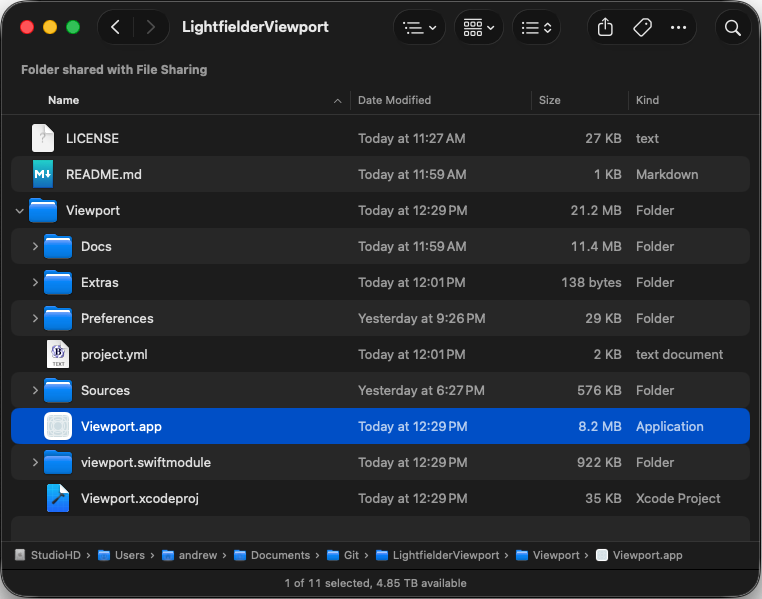
xcodegen is an amazing cli-based toolset. It allows you to use a YAML based project configuration file named "project.yml" to quickly re-generate an xcode project from scratch.
This toolset makes it super easy to revise ".xcodeproj"project settings, or create variations of your app for several different platforms without getting bogged down in project file patching.
With your project.yml file you can define the code signing options, and build deliverables in a way that is agentic coding friendly.
Creating a new project
xcodegen helps you make new Xcode project files. The cli tool is typically run from the terminal window, launched by a shell script, or used inside an an agetic coding session.
To use the xcodegen cli program, you start by changing the working directory to the location where the project.yml file is located.
The xcodegen cli tool is then used to generate a fresh .xcodeproj file.
You can use the simple command:
xcodegen generate
or you can specify the specific project filename to use:
xcodegen generate --spec project.yml
Finding your Apple Development ID
When you switch your automatic code signing workflows from using the Xcode GUI over to xcodegen, you need to look up the active developer IDs that are present on your system.
This command lists the "Apple Distribution" and "Apple Development" certificates:
security find-identity -v -p codesigning | head -3
This information gets added to the project.yml file in the "settings base" section:
ENABLE_HARDENED_RUNTIME: YES
CODE_SIGN_STYLE: Automatic
CODE_SIGN_IDENTITY: Apple Development
DEVELOPMENT_TEAM: 000AAAAAA0
CODE_SIGNING_REQUIRED: YES
CODE_SIGNING_ALLOWED: YES
AD_HOC_CODE_SIGNING_ALLOWED: NO
CODE_SIGN_INJECT_BASE_ENTITLEMENTS: NO
CODE_SIGN_TIMESTAMP: timestamp.apple.com:ts1
Ouput Folder
xcodegen is able to define where the compiled application is saved when the code is built. If you wish, you can save the output to the same project location where the project.yml file is located for convenience.
This is controlled with the setting:
CONFIGURATION_BUILD_DIR: "$(PROJECT_DIR)"
Compiling the Xcode Project
Once your .xcodeproj file has been created/refreshed you can either build it directly from the command line:
xcodebuild -project Viewport.xcodeproj -scheme Viewport build -allowProvisioningUpdates
Or you can open the project in a new Xcode GUI session:
open -a Xcode Viewport.xcodeproj
The Xcode project can be built from the Xcode IDE sesion using the "Product > Build" menu or the Cmd + B hotkey. This is most useful for catching build issues and for visually debugging the new application you are creating.
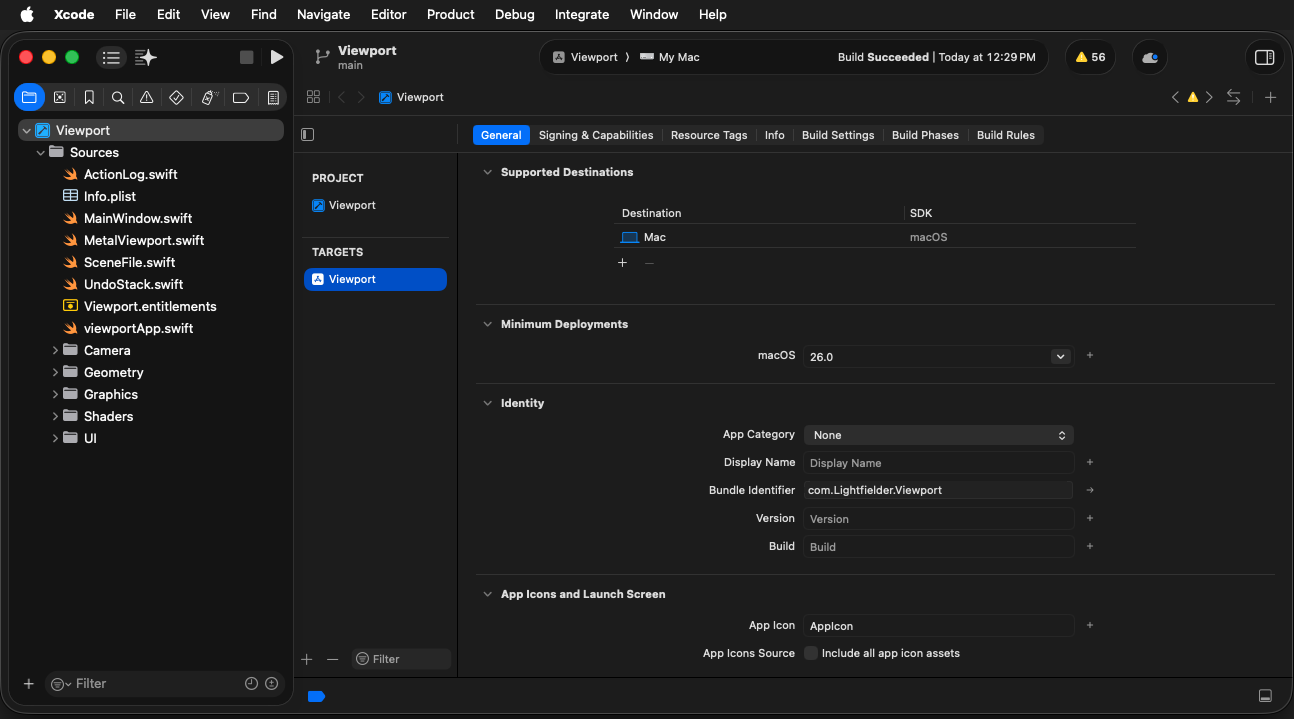
It is possible to configure your Xcode project file so the final compiled application is placed in the same folder location as the xcodegen project.yml file. This can save a lot of time hunting in temporary build folders over and over again.